
Use the training sections below to learn how to make safe, accessible and consistent updates to Georgia Southern WordPress pages. These guides cover basic editing, page layouts, accessibility, SEO/AEO, documents, links and common web standards.
If you are new to editing Georgia Southern WordPress pages, start with How to Login to WordPress, WordPress Dashboard Basics, Page Layouts, and the Publishing Checklist. These sections cover the basics you need before making updates.
Need help with a page update, new page, form, table, layout change or custom request?
What Requires a Web Request
Submit a web request for tables or complex layouts, new pages, page removals, page title or slug changes, parent page or category changes, program pages with /degrees/ URLs, contact forms, Ninja Tables, custom HTML, embedded calendars or scripts, new image-based blocks and hero image updates.
Unlike before, our site is now under one WordPress install. This means that any old login links will no longer work and you will have to login to the “main site” to make edits. If you have any old links bookmarked, please remove those and add https://www.georgiasouthern.edu/login.
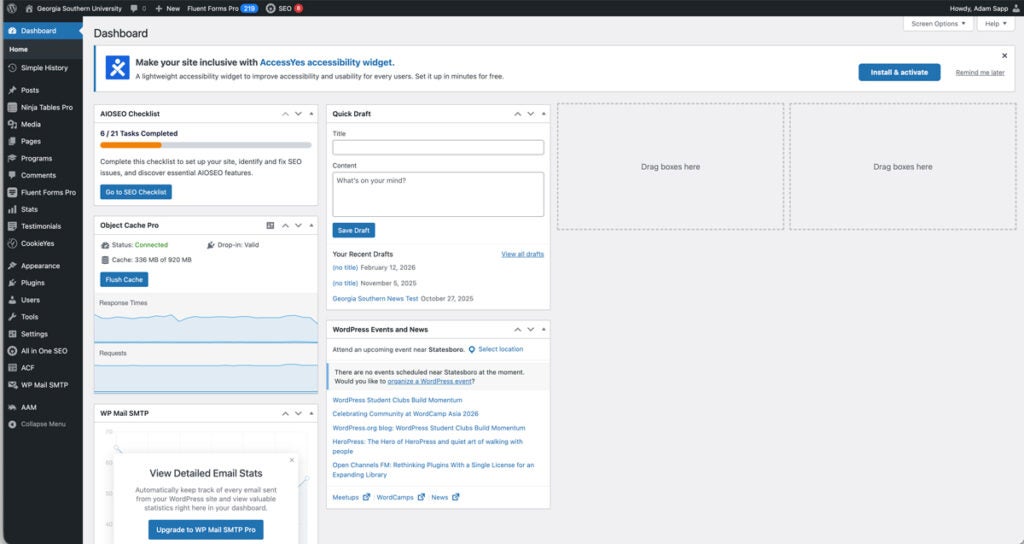
When you log in to WordPress, you will land on the Dashboard. The dashboard is the main control area for managing website content.
Your screen will not look exactly like the screenshot above. The example shown is from the Adam’s (Web Manager) account, who has access to the full Georgia Southern website. Web editors, authors and contributors will see a much simpler dashboard with fewer menu options.
Most editors will mainly use:
- Pages: Use this to find and edit the webpages you are responsible for.
- Media: Use this only if you have permission to access images in the Media Library.
- Posts: Use this only if your role includes editing news or post-style content.
You may not see advanced items such as Ninja Tables, Fluent Forms, Programs, Stats, Testimonials, Plugins, Appearance, Settings, Users, AIOSEO, ACF or AAM. That is normal. These tools are usually managed by the Web Team.
For most updates, follow this basic workflow:
Pages → Find your page → Edit content → Preview → Update
Do not change page URLs, slugs, parent pages, navigation, forms, tables, unless you have been specifically trained and approved to do so. The Custom HTML block is reserved for usage by the Web Team ONLY.
When in doubt, submit a web request.
Georgia Southern WordPress pages usually use one of two layouts: Secondary or Tertiary. These layouts control how the page is structured and where content appears.
Secondary Layout
The Secondary Layout is usually used for top-level pages, such as department or office homepages. These pages are more visual and often include a full-width layout.
A Secondary Layout page may include:
- Hero area with a large image and page heading
- Secondary Subnav, which is the blue horizontal menu near the top of the page
- Timely Update section for important announcements
- Common blocks for regular page content
- Visual or feature sections, such as panels, router grids or image-based content
Secondary Layout pages usually have more design elements. If you need to change the hero image, add a new visual section, adjust major layout pieces or change navigation, submit a web request.
Tertiary Layout
The Tertiary Layout is usually used for internal pages. These pages are more content-focused and often include a right sidebar menu.
A Tertiary Layout page may include:
- Hero Minimal area with the page title and breadcrumbs
- Main content area where most text updates happen
- Sidebar navigation on the right side of the page
- Related Links section for extra resources
- Contact block shared across pages in that section
- Full-width content area below the main content, if needed
Most day-to-day editing will happen in the main content area of Tertiary Layout pages.
Quick Rule
Use this simple guide:
- Secondary Layout = top-level/homepage-style page
- Tertiary Layout = internal/content page
When in doubt, only edit the assigned content area and submit a web request for layout, navigation, hero, sidebar or structural changes.
Basic content blocks are the most common blocks web editors will use in WordPress. These blocks help you add and organize regular page content.
Common basic blocks include:
- Paragraph for regular body text
- Heading for section titles
- List for bullets or numbered steps
- Button for important calls to action
- Details for hidden or expandable content
- YouTube Embed for adding videos
Most editors will use these blocks inside approved content areas, such as the main content section, common blocks, accordions, panels or split columns.
What to Remember
Use blocks based on the type of content you are adding.
- Use a Heading to introduce a new section.
- Use a Paragraph for regular text.
- Use a List when information is easier to scan.
- Use a Button for important actions, such as applying, registering or submitting a form.
- Use Details when extra information should be available but not visible all at once.
- Use a YouTube Embed when adding an approved video.
Accessibility Reminders
- Headings should stay in order and should not be used only to make text look bigger.
- Links and buttons should use clear wording. Avoid vague text like “click here” or “learn more” when the destination is not obvious.
- Videos should be approved and appropriate for the page.
- Do not hide important required information inside expandable content if users need to see it right away.
Structural blocks help organize the page and create larger content sections. These blocks are more specific to Georgia Southern’s WordPress site, so they may look different from standard WordPress blocks.
Common Block
The Common Block is the general content area of a page. This is where most regular page content is added and edited.
Use a Common Block for:
- Paragraphs
- Headings
- Lists
- Buttons
- Basic page information
Most day-to-day text edits will happen inside a Common Block.
Split Column
The Split Column block automatically organizes paragraph text or lists into two columns.
Use a Split Column when you have:
- A long list that would be easier to scan in two columns
- Short grouped content
- Paragraphs that need a simple two-column layout
Do not use it for complex layouts, tables or content that needs custom formatting.
Panel
The Panel block creates a 2-column or 3-column grid for short sections of information.
Use Panels for:
- Short content groups
- Quick facts
- Related options
- Small sections with a heading, short text and button
Panels work best when each item is similar in length. If the content is too long, it may be better as regular page content or an accordion.
Accordion
The Accordion block creates expandable sections that users can open and close.
Use Accordions for:
- FAQs
- Policy details
- Step-by-step information
- Long content that users may want to scan by topic
Do not overuse accordions. If too much content is hidden, the page may look empty or users may miss important information.
Router Panel
The Router Panel is a more visual way to show a list of links.
Use Router Panels for:
- Quick links
- Resource pages
- Groups of related pages
- Navigation-style content within a page
Router Panels are better than a long bullet list when you want links to stand out more.
Timely Update
The Timely Update block is used for short-term announcements. Think of it like a notice on the front door of the website.
Use Timely Updates for:
- Deadlines
- Upcoming events
- New office hours
- Temporary announcements
- Important reminders
Only use Timely Updates when the information is current and time-sensitive. Remove or update them when they are no longer needed.
Quick Rule
Use structural blocks to make content easier to scan, not just to make the page look different. When in doubt, keep the layout simple or submit a web request for help with more complex page structure.
Links and buttons help users move through the website and complete important actions. They should be clear, useful and easy to understand.
Links
Use a text link when you are sending users to helpful information within a sentence or paragraph. Links should always be title case.
Examples:
- View the Academic Calendar
- Review Financial Aid Deadlines
- Download the Application Checklist
- Visit the Office of Admissions
Avoid vague link text like:
- Click here
- Learn more
- Website
- Read more
Link text should tell users exactly where the link goes, even if they are reading the link by itself.
Buttons
Use a button when the action is important or should stand out on the page. Buttons should always be title case.
Good uses for buttons include:
- Apply Now
- Request Information
- Schedule a Visit
- Register for Orientation
- Submit a Web Request
Do not use too many buttons in one section. If everything looks important, nothing stands out.
Adding or Editing a Link
To add or edit a link:
- Highlight the text you want to link.
- Click the link icon.
- Paste the correct URL.
- Apply the link.
- Preview the page and test the link before updating.
To remove a link, click the linked text and choose the unlink option.
Linking to Documents
Documents should usually be hosted in Google Drive or another approved location, not uploaded directly to WordPress.
Before linking to a document, make sure:
- The document is accessible.
- The sharing settings allow users to view it.
- The link text clearly explains what the document is.
Example:
Good: Download the 2026 Scholarship Application
Bad: Click here
External Links
Use external links carefully. Make sure the site is trustworthy, relevant and appropriate for Georgia Southern users.
Before Updating the Page
Always check that:
- Links go to the correct page.
- Buttons go to the correct form, page or resource.
- Link text is clear and descriptive.
- Document links open for users who need access.
- No links are broken.
When in doubt, submit a web request.
Georgia Southern University strives to make our official websites accessible for all visitors including those with disabilities. Accessibility standards for the web are established by Section 508 and the Web Content Accessibility Guidelines (WCAG) 2.1 as well as the University System of Georgia (USG). The official University themes address many of these standards, but content editors need to be able to understand how to address problematic areas in their site’s content. Here are some basic guidelines:
- Text color – text must be in high contrast with the background (7:1 for normal text, 4.5:1 for headlines). The styles within the University themes are compliant with this standard, content editors should not alter the color of the text on their websites.
- Images – require a text alternative (a.k.a. “alt” text ) – WordPress will insert alt text for you when you use the “Add Media” tab in the page editor. If you insert your images manually, you’ll need to enter alt text as well. If an image is purely decorative, use alt=”” (null value) to indicate that assistive technology should ignore it.
- Links – use descriptive text to help users clearly identify the purpose of a link. For example, link the descriptive phrase “working with tables” instead of “more info” or “click here.” The same applies to PDFs or other documents which should include a note to indicate that the link opens a PDF: University’s Identity Standards (PDF).
- Structure – content should be structured in a way that guides visitors using assistive technology logically through the page. This can be done by using meaningful markup such as headings, paragraphs, <strong> or <em> for emphasis, and by avoiding markup that is purely presentational e.g. “align”, “bgcolor”, <b>, <i>. Headings should be used in order (h2 followed by h3, h4, h5) when possible. Using tables to create layouts should also be avoided – the table html tag indicates tabular data, so search engines and assistive technologies alike may misinterpret your content if misused.
What You Need to Check
Before updating a page, make sure:
- Headings are in the correct order.
- There are no blank headings.
- Links are descriptive and do not use vague text like “click here,” “learn more” or “website.”
- Images have helpful alt text.
- Graphics do not contain large amounts of important text.
- PDFs are accessible before being linked.
- Important content is placed on the webpage when possible, instead of only inside a PDF.
- Tables are used only for data, not for page layout.
- Information does not rely on color alone.
- Content is written in plain, clear language.
- The page is easy to read on mobile.
External Accessibility Resources
Use these resources for extra help:
- WCAG 2.1 Guidelines: Official accessibility standards from W3C.
- How to Meet WCAG Quick Reference: Searchable WCAG checklist and guidance.
- W3C Writing for Web Accessibility: Good guidance for headings, links, alt text and clear content.
- W3C Headings Tutorial: Helpful explanation of why heading structure matters.
- W3C Alt Text Decision Tree: Helps decide what alt text an image needs.
- WebAIM Alternative Text Guide: Practical examples for writing alt text.
- WebAIM Link Text Guide: Explains how to write accessible links.
- Section508.gov Accessibility Training: Free accessibility training and resources.
Quick Rule
If someone using a screen reader, keyboard or mobile device would have trouble understanding or using the content, it needs to be fixed before the page is updated.
Documents should NOT be uploaded directly to the WordPress Media Library. The Media Library should be used for website images, not PDFs, Word documents, flyers or forms.
When sharing a document on the website, use an accessible PDF and upload it to the appropriate departmental Google Drive folder.
Document Requirements
Before linking to a document, make sure:
- The document is saved as an accessible PDF.
- The file is uploaded to the correct departmental Google Drive folder.
- The sharing setting is set to anyone with the link can view.
- The link works for users outside your department.
- The document content is current and approved.
Webpage vs. PDF
When possible, important information should be placed directly on the webpage instead of only inside a PDF.
Webpage content is usually:
- Easier to read on mobile
- Easier to search
- Easier to update
- More accessible for users
- Better for SEO and AEO
Use PDFs only when the document format is truly needed, such as official forms, printable documents or approved downloadable resources.
Linking to Documents
When linking to a document, use clear and descriptive link text.
Good examples:
- Download the 2026 Scholarship Application
- View the Student Organization Funding Guidelines
- Review the Housing Exemption Request Form
Avoid vague links like:
- Click here
- Form
- Download
- More information
Need Help?
If you do not have access to a departmental Google Drive folder or approved hosting location, submit a web request. The Web Team can help upload or link the document correctly.
When in doubt, do not upload the document to WordPress. Submit a web request instead.
The WordPress Media Library stores images used across Georgia Southern websites. Because the Media Library is shared and must follow accessibility, branding and web standards, most users are not able to upload images at this time.
If you need an image uploaded, replaced or added to a page, submit a web request to the Web Team.
Image Sizing
(Block type codes for use in filenames are listed in parentheses).
- Hero Images (hero)
- 1600×900 (72 or 150 ppi)
- Images focus should be shifted to the right side of the frame to ensure the page title does not interfere with the purpose of the image.
- CTA (cta)
- 1000×667 (72 or 150 ppi)
- Feature Panels (fp)
- 900×675 (72 or 150 ppi)
- Visual Router Grid (vr)
- 900×675 (72 or 150 ppi)
- Headshots (headshot)
- 400×600 (72 or 150 ppi)
Image Naming Conventions
When saving and uploading images, rename the file to clearly describe its content and include relevant keywords. For example:
- Good: hero-georgia-southern-campus-aerial-view.jpg
- Poor: IMG_12345.jpg
All image filenames must include the following in the exact order:
- Type of block the image is going into (ex: hero)
- Followed by Georgia Southern (ex: hero-georgia-southern)
- College/Department (ex: hero-georgia-southern-cri)
- Descriptive and Include Relevant Keyword (ex: hero-georgia-southern-cri-arc-fitness)
Not only will this allow us to easily search our vast image library, but it also improves SEO by helping search engines understand the image and increases visibility in Google Image Search, supporting accessibility.
Compression & Uploading
Before uploading images, ensure they are optimized for fast loading without sacrificing quality. Use an image compression tool (such as Optimizilla, Squoosh or Photoshop’s “Save for Web” feature) to reduce file size while maintaining clarity. Smaller, optimized images improve page speed—an important factor for both user experience and SEO. When uploading, always include optimized alt text:
- Write clear, concise descriptions that accurately reflect the image’s content and purpose.
- Naturally incorporate relevant keywords that align with the page’s topic.
- Ensure alt text provides meaningful context for users relying on screen readers and for search engines indexing the image.
Examples:
- Good Alt Text: Georgia Southern University’s Armstrong Campus quad with students walking between palm trees
- Poor Alt Text: Campus or Image123
Optimizing both file size and alt text ensures images load quickly, are accessible to all users and are discoverable in search results, helping each page perform better in search rankings.
Photography for Use on Your Site
Photos of campus events, buildings, etc. can be found on the sites below. Do not use images downloaded from Google or other places that you have not paid for or gotten permission to use.
SEO helps people find Georgia Southern pages through search engines like Google. AEO helps content answer questions clearly for search engines, AI tools and users.
Web editors do not need to be SEO experts, but every page should be clear, accurate and easy to understand.
Page Titles & Headings
Each page should have a clear page title and organized headings.
Use headings in order:
- H1 is usually the main page title. (This is already located in the hero block, do NOT add any other H1s to a page)
- H2 is used for major page sections.
- H3 is used for subsections under an H2.
Do not use headings just to make text bigger. Headings help users, search engines and screen readers understand the page structure.
First Paragraph
The first paragraph should quickly answer the main question users may have.
For example, instead of starting with a long welcome message, explain what the page is about, who it is for and what action the user can take.
Section Headings
Use clear section headings that describe the content below them.
Good examples:
- Admissions Requirements
- How to Apply
- Tuition and Fees
- Contact Financial Aid
- Visit Georgia Southern
Avoid vague headings like:
- Information
- More
- Helpful Links
- Details
Links & Internal Linking
Use descriptive links that explain where the user is going.
Good example:
- View undergraduate application deadlines
Bad examples:
- Click here
- Learn more
- Website
When helpful, link to related Georgia Southern pages so users can continue their next step.
Metadata
Pages should not have missing or duplicate metadata. Metadata helps search engines understand the page and can affect how the page appears in search results.
If a page needs metadata updates, follow Web Team guidance or submit a web request.
URLs & Slugs
Do not change page URLs or slugs without Web Team review. URL changes can break links, hurt SEO and confuse users.
Do not delete pages without checking with the Web Team. Deleted pages may need redirects so users do not land on broken links.
Keep Content Updated
Outdated content can hurt trust and create confusion.
Check pages regularly for:
- Old dates
- Expired deadlines
- Broken links
- Outdated contacts
- Old forms
- Incorrect program or department information
Write for Real Users First
Write for prospective students, current students, families and campus audiences first. Search engines and AI tools work best when the content is clear, helpful and direct.
Use:
- Plain language
- Short paragraphs
- Clear headings
- Descriptive links
- Accurate information
- Strong calls to action
Quick Rule
A strong web page should answer the user’s question quickly, guide them to the next step and stay easy to scan on desktop and mobile.
When in doubt, do not change titles, slugs, metadata or page structure without Web Team guidance.
Georgia Southern web content should feel clear, helpful and consistent across all pages. Web editors are responsible for making sure content follows University writing, branding and accessibility standards.
Writing Style
Use clear, student-friendly language. Write for the people who are actually using the page, such as prospective students, current students, families, faculty, staff and community members.
Strong web content should:
- Be easy to scan
- Use short paragraphs
- Use clear headings
- Use lists when helpful
- Avoid unnecessary jargon
- Explain acronyms on first use
- Get to the point quickly
- Help users understand their next step
Avoid long blocks of text. If a paragraph looks overwhelming, break it into smaller sections with headings, lists or buttons.
Georgia Southern Tone
Content should sound professional, welcoming and helpful. It should represent Georgia Southern clearly and confidently without sounding too casual, confusing or overly complicated.
Use language that is:
- Accurate
- Friendly
- Direct
- Inclusive
- Student-centered
- Easy to understand
AP Style & University Style
Follow the Georgia Southern University Style Guide and AP Style when writing or editing web content. This helps keep names, titles, departments, dates, punctuation and terminology consistent across the website.
Check official style guidance when writing:
- Department names
- Office names
- Academic programs
- Campus names
- Job titles
- Dates and times
- Phone numbers
- Abbreviations and acronyms
Brand Standards
Do not use off-brand colors, fonts, graphics or design elements. Georgia Southern pages should look and feel consistent across the website.
Avoid:
- Unapproved graphics
- Text-heavy flyers
- Off-brand colors
- Random fonts
- Low-quality images
- Screenshots used as main content
- Graphics that do not meet accessibility standards
When adding visual content, make sure it follows University brand standards and accessibility requirements.
Quick Rule
Write clearly, keep content scannable and make sure everything looks and sounds like Georgia Southern.
When in doubt, submit a web request or ask the Web Team before adding content that may affect branding, accessibility or usability.
Tables and complex content should be handled carefully because they can affect accessibility, mobile readability and overall page usability.
In most cases, requests involving tables, Ninja Tables or complex layouts should be submitted to the Web Team.
When Tables Are Appropriate
Tables should only be used for true data that needs to be compared in rows and columns.
Appropriate table content may include:
- Deadlines
- Fees
- Schedules
- Contact directories
- Program lists
- Comparison information
Tables should not be used just to create columns, space content out or control the visual layout of a page.
Accessibility Concerns
Tables can be difficult for screen readers and mobile users if they are not built correctly. Large tables can also become hard to read on smaller screens.
Before requesting a table, consider whether the content could be easier to understand as:
- A list
- An accordion
- A set of panels
- A short webpage section
- A downloadable document, if appropriate
Ninja Tables
Ninja Tables are used for more complex or searchable tables, such as:
- Faculty and staff directories
- Degrees and programs listings
- Large resource lists
- Filterable or sortable content
Most web editors should not create or edit Ninja Tables directly. These updates should be submitted to the Web Team.
What to Include in a Table or Ninja Table Request
When submitting a request, include:
- The page URL where the table should appear
- The purpose of the table
- The full table content in a Google Doc, Google Sheet, Excel file or Word document
- Column headings
- Any links that need to be included
- Any rows that need to be added, removed or updated
- Whether the table needs search, filters or sorting
- A deadline, if applicable
Quick Rule
If the content needs rows, columns, filters, sorting, directories, program listings or complex formatting, submit a web request.
The Web Team will help determine the most accessible and user-friendly way to present the information.
Forms, embeds and custom HTML can affect accessibility, privacy, security and how a page works. Most of these requests should be reviewed by the Web Team before they are added to a page.
YouTube Embeds
Built-in YouTube embeds are usually allowed when the video is approved and appropriate for the page.
Before adding a YouTube video, make sure:
- The video is relevant to the page.
- The video is accurate and current.
- The video is publicly available or viewable by the intended audience.
- The page still makes sense without relying only on the video.
Google Forms
Google Forms can usually be linked from a page instead of embedded.
Use clear link text, such as:
- Complete the Student Interest Form
- Submit the Event Registration Form
- Request More Information
Avoid vague links like:
- Click here
- Form
- Submit
If a form needs to be embedded directly on the page, submit a web request.
Contact Forms
Contact forms require Web Team help.
Submit a web request for:
- New contact forms
- Form edits
- Form routing changes
- Confirmation message updates
- Notification email updates
- Form troubleshooting
Custom HTML
Do not add custom HTML, scripts or code. If you need HTML added to your page, please submit a ticket to the web team.
Custom code can affect more than one page and may not work correctly across devices or browsers.
Quick Rule
YouTube embeds are usually okay when approved and relevant. All other embeds, scripts and custom HTML requests should go to the Web Team.
When to Add or Request a New Page
Some web editors may have permission to create new pages, while others may need to submit a web request for Web Team help.
Before creating a new page, first consider whether the content could fit on an existing page. Too many pages can make the site harder to navigate and maintain.
A new page may be appropriate when the content has a clear purpose, needs its own place in the site structure, and is different enough from existing content.
More complex pages should always be confirmed or completed by the Web Team, especially if they involve:
- New navigation placement
- Custom layouts
- Forms
- Tables or Ninja Tables
- Custom HTML or embeds
- Program pages
- Major SEO changes
- Page redirects
- Hero images or advanced visual sections
When in doubt, submit a web request before creating the page. The Web Team can help make sure the page is accessible, easy to find, properly structured and aligned with Georgia Southern web standards.
Before clicking Update, review the page to make sure the content is accurate, accessible and within your editing scope.
Before You Update
Check that:
- You edited only pages within your assigned section.
- Headings are in the correct order.
- There are no blank headings.
- Links are descriptive and tested.
- Buttons go to the correct page, form or resource.
- Images have appropriate alt text.
- PDFs are accessible and hosted correctly.
- Content is accurate, current and approved.
- The page is easy to read on mobile.
- No page title, URL slug, parent page or category changes were made.
- You previewed the page before updating.
After You Update
Once the page is updated, view the live page and check it again.
Make sure:
- The page displays correctly.
- Links and buttons still work.
- Formatting looks clean.
- Nothing important is missing.
- The page is readable on desktop and mobile.
Quick Rule
Preview first. Update second. Check the live page last.
If something does not look right, or if you are unsure whether the change should be made, submit a web request before updating.
These are some of the most common issues that can cause problems with accessibility, SEO, navigation or page formatting.
Please Do Not
- Change page URLs or slugs.
- Change parent pages or page categories.
- Create duplicate pages.
- Upload PDFs or Word documents to the WordPress Media Library.
- Use vague link text like “click here,” “learn more” or “website.”
- Upload graphics with large amounts of text.
- Leave blank heading blocks on the page.
- Use headings only to make text larger or bold.
- Change navigation menus without approval.
- Edit pages outside your assigned section.
- Delete content without checking whether it is still needed or linked elsewhere.
- Use tables to create page layouts.
- Paste messy formatting directly from Word or Google Docs.
Why This Matters
These mistakes can create broken links, accessibility issues, confusing navigation, poor mobile display or inconsistent branding.
Quick Rule
If the change affects the page URL, navigation, layout, accessibility or another department’s content, submit a web request before making the update.
- Web Colors & Fonts
- For consistency and accessibility standards, don’t use mixed font sizes, colors and/or faces.
- Web logos for download
- Lists & comma use – following Georgia Southern University standards – don’t use a comma to separate the last items of a list: e.g. cats, dogs and squirrels (not: cats, dogs, and squirrels)
- For help in content writing see the Web and Calendar Content Quick Style Guide.
- Consolidate related content when possible – if you only have a few sentences or paragraphs for each section of a site, include the content on a single page and use headings to break it up, rather than creating separate pages for small amounts of text.
- When you have substantial amounts of inter-related content, create “sections” within your site with Parent pages (use the Page Attributes box to assign parent pages).
- Parent pages also establish your site’s URLs (e.g., WingSPAN is given the parent page “Programs” to create this url: http://admissions.georgiasouthern.edu/programs/wingspan/)
- Breadcrumbs are provided on all our sites to help users navigate between pages easily – creating a logical organization with parent and child pages establishes breadcrumbs and makes them useful. Here’s an example of breadcrumbs for the “Working with Tables” page under the parent page “Learn WordPress”.
- Parent pages should not be blank – they should include content and links to their “child” pages.
- Colleges will be expected to retain their current url structure in WordPress.
- Navigation Menus:
- Drop downs should not be placed under the “Home” tab – by convention the “Home” button takes visitors back to the home page in a single click.
- Links to documents in a navigation menu should include a parenthetical note – (PDF) or (Word Doc) for instance – so visitors understand that they will be downloading a document when they click the link. It’s better, however, to send visitors to a page on your site that contains the link to the document, rather than linking directly to documents in a navigation menu.
- Don’t link to “coming soon” or “draft” pages – wait until the content is published.
Content
- News – read our recommendations for using categories and tags to help visitors find related content.
- Read Web Content 101 – our quick, one-page guide to web writing – and SEO 101 for search engine optimization basics.
- Home page titles – use a descriptive title when possible – e.g. “Advanced Teacher Preparation” or “Ed.D. in Curriculum Studies” instead of “Welcome” or “Overview.”
- Visibility – all pages marked “Published” are indexed by search engines and are visible to the public whether there is a link to that page on your site or not. Any pages that are not ready for public viewing must be set to “Draft” status until they are ready for publication. The same applies to News and Content Blocks.
- By convention, underlined text on the web is “clickable” – to avoid confusing your visitors, don’t underline text that is not linked.
- Links:
- As a rule all links should open in the same window or tab. Opening a link in new window disorients users and disables the use of the back button, a crucial navigation tool on mobile devices.
- Links to PDFs and other docs – let your visitors know when a link will open a PDF or other document type by a adding parenthetical note – e.g. (PDF) or (Word doc) – or include a graphic icon beside the link.
- During migration, correct all links within your content that point to your old site. The web team will set up redirects for top-level pages, but it is your responsibility to ensure links within your content work after launch.
- Links to restricted-access sites – include a note when a link will require visitors to enter login credentials (e.g. add a note stating “MyGS login required” when linking to a SharePoint site that requires users to login).
- Review your site regularly to ensure your content is up-to-date and accurate. You’ll also receive reports from our web governance tool, SiteImprove, to help you find and fix broken links and misspellings on your site.
Restricted Block Usage
Failure to adhere to UCM’s restricted block policy will result in the responsible user’s access to the website being revoked for up to 90 days and the user must attend a revoked access meeting with Adam Sapp and Amy Huggins before their access will be restored.
Policy Reminder: Do NOT Use or Edit Custom HTML Blocks in WordPress
To ensure consistency, accessibility, and security across all pages on the Georgia Southern website, web contributors and web editors are strictly prohibited from using the Custom HTML block in WordPress.
What You Must Do
- Use only approved WordPress blocks (Paragraph, Heading, Image, Button, Columns, etc.).
- If you need a layout or function that you believe requires custom HTML, submit a request to the University Communications and Marketing (UCM) Web Team for review and implementation.
- Never paste or modify HTML, inline styles or scripts within the editor.
Monitoring & Enforcement
- UCM actively monitors website activity and page revisions across all university sites. If unapproved HTML is found:
- The responsible user’s access to the website will be revoked for up to 90 days.
- The code will be removed immediately to maintain site security and compliance.
This policy applies to all sites and roles, including Web Contributors, Authors and Editors.
Still Unsure?
If you need assistance achieving a specific layout or functionality, contact the UCM Web Team via ClickUp. We’re happy to help ensure your content stays compliant, accessible and on brand.